
Custom Library for Elementor allows you to share and reuse your template library across multiple websites. This makes it easy to maintain a single source of truth for your designs and keep all your projects consistent.
You configure this from:
Settings > Remote Library tab
There are three operating modes. Each site must be set to one of them.
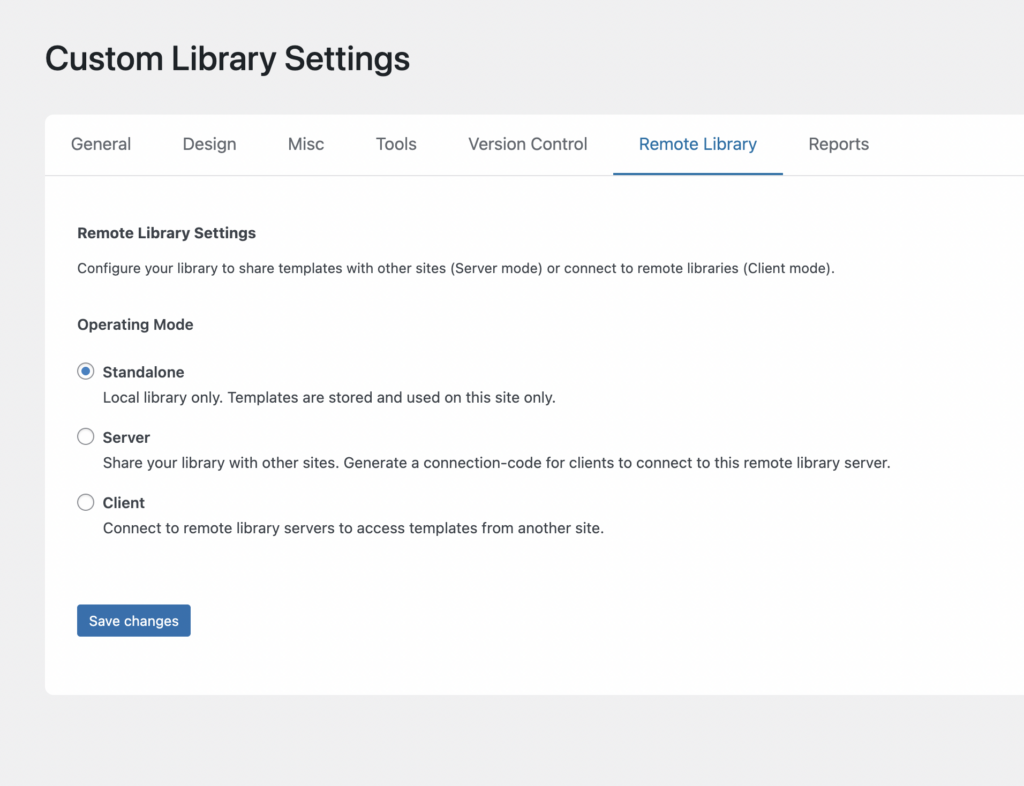
Standalone
This is the default mode.
- The library is local to the website
- Templates are stored and used only on this site
- No sharing or external connections are active
Use this if the site does not need to share or receive templates.
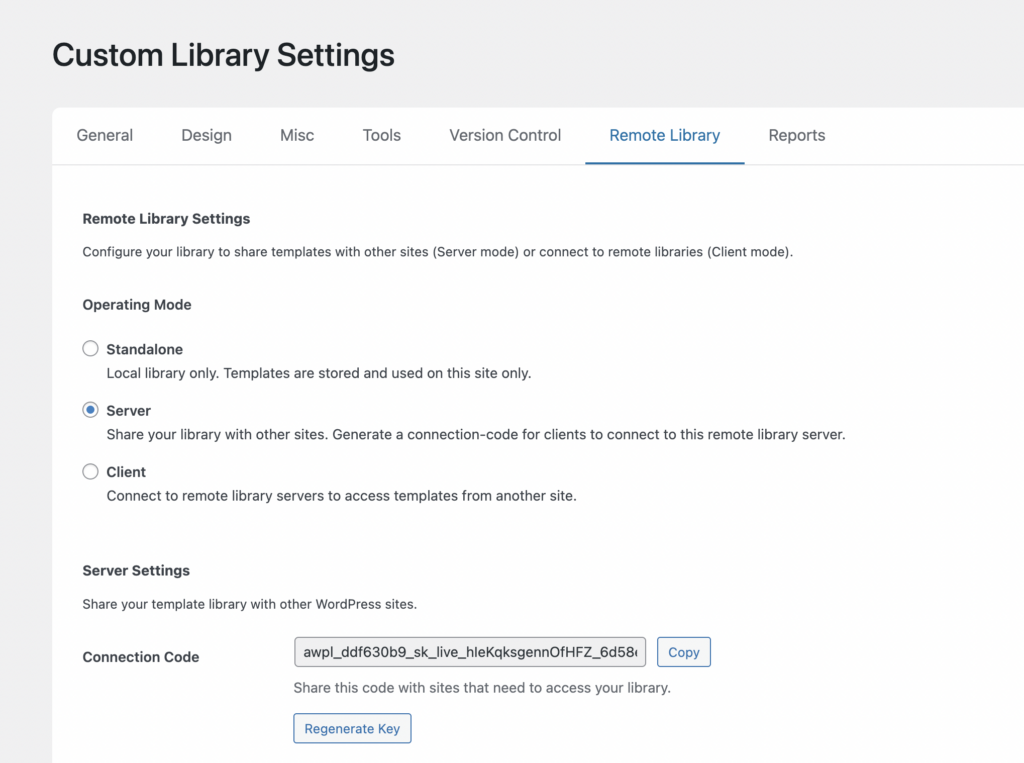
Server
Server mode turns the site into a template provider.
- The site exposes its template library to other websites
- A unique Connection Code is generated
- Other sites can connect to it using this code
Steps:
- Go to Settings – Custom Library – Remote Library
- Select Server
- Copy the generated Connection Code
- Share this code with any site that should access this library
You can regenerate the code at any time if you want to invalidate existing connections.
Typical use:
- Your main design system website
- A central template hub for multiple client projects
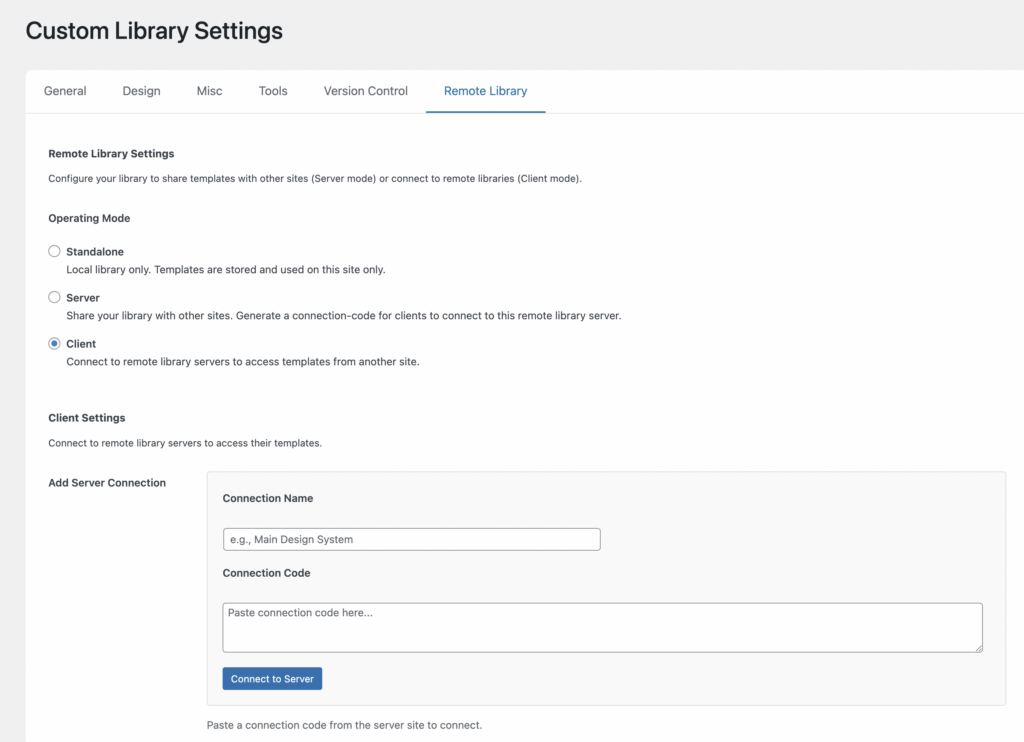
Client
Client mode turns the site into a template consumer.
- The site connects to one or more servers
- It gains access to their template libraries
- Templates can be used directly inside Elementor
Steps:
- Go to Settings – Custom Library – Remote Library
- Select Client
- In Add Server Connection:
- Enter a Connection Name (for example: Main Design System)
- Paste the Connection Code from the server site
- Click Connect to Server
Once connected, the remote templates will appear in your Custom Library.
Typical use:
- Multiple websites sharing the same UI components
- Client projects pulling layouts from your main system
How the Flow Works
- One site is set to Server
- It generates a Connection Code
- Another site is set to Client
- The code is pasted into the Client
- The Client now has access to the Server’s templates
Simple, secure, and fully controlled by you.
Recommended Setup
For most workflows:
- One main website as Server
- All other websites as Clients
- Any independent website stays Standalone
Managing Connected sites
You can always see and control which websites are connected to your library.
On the Server site
- Click View Connected Clients at the bottom of the page
- Shows all websites using your library
- You can see:
- Site name and URL
- Templates used
- Last activity
- Connection status
- Click Revoke to instantly remove access for any site
This is your control panel for sharing templates.
On the Client site
- Click the button at the bottom of the page to view connected servers
- Shows which libraries this site is pulling templates from
- Lets you verify and manage your active connections